The world of commerce runs on identifiers — numbers and codes that make each product unique in digital catalogues. For many, a GTIN (Global Trade Item Number) is essential, especially for selling on platforms like Google Shopping or scanning products at physical checkout. In the WooCommerce ecosystem, the road to adopting a GTIN has been long and surprisingly bumpy.
WooCommerce has now introduced a native GTIN field, which is game changing.
WooCommerce’s GTIN field: a late arrival
WooCommerce’s decision to introduce a dedicated GTIN field was long-awaited by users and developers – it was a pleasant surprise for me after using custom fields for over a decade. Until now, most shops I worked for had to rely on custom fields or third-party plugins to store GTINs (separate from SKUs). This native support should, in theory, streamlined product data, improved SEO, and simplified integration with marketplaces.
However, there are a few gaps. None of WooCommerce’s official plugins — like Google Product Feed, Facebook for WooCommerce, or other product import/export plugins — recognise this GTIN field. Woo’s product export doesn’t yet support it (update – it does now!). In the meantime, I have a quick workaround for manually copying GTIN data into fields that can be read by other plugins and tools.
Why Google Needs a Crawlable GTIN
For businesses relying on Google Shopping as a sales channel, GTINs are critical. Google uses GTINs to identify products accurately in its search index, allowing the platform to match identical products from multiple sellers and compare prices.
Google’s product feed specifications require GTINs to be included in a way they can easily crawl, such as in an exportable feed or directly on product pages. Without this, a shop’s product visibility suffers, leading to lower rankings and missed sales.
A Workaround: Custom Fields and Plugins
For now, WooCommerce shop owners who need a GTIN in their product feeds are still reliant on custom fields or third-party plugins to get the job done. Many plugins designed for Google Product Feed generation still rely on custom GTIN fields, and without an update to these plugins, WooCommerce’s native GTIN support remains largely symbolic.
However – it is notable that this native support has not been announced, a ton of us pleasantly found it after updating WooCommerce. When it is announced, I’m certain that the issues above will be resolved.
Developers and store owners are turning to code customisations, creating ways to map WooCommerce’s GTIN field to Google’s feed requirements. This approach requires technical know-how, making it less than ideal for the average store owner.
What we’re hoping for
For WooCommerce’s GTIN field to live up to its potential, support needs to extended across WooCommerce’s official extensions. Specifically:
- Google Product Feed: WooCommerce’s Google Product Feed plugin should automatically recognize and use the native GTIN field. This integration would allow for seamless compliance with Google’s requirements.
- Product Feeds and Exports: Any product export features should make the GTIN field available for mapping to ensure GTINs are crawled by Google and other search engines.
- Third-Party Plugins: Given the high usage of WooCommerce’s API by third-party plugins, WooCommerce should ensure that its GTIN field is exposed in a way that allows for straightforward integration by external developers.
What’s Next for WooCommerce Users?
Until the full plugin stack is brought up to speed, store owners can continue to use custom fields and plugins as a stopgap. But updating these plugins to natively support GTINs should be high on the agenda.
For now, the GTIN update serves as a reminder that even small changes can have far-reaching impacts. And while the GTIN field’s release was a step forward, true support across WooCommerce’s ecosystem is needed to make this field a real asset for WooCommerce store owners.
How do I Import GTINs using WooCommerce’s default import?
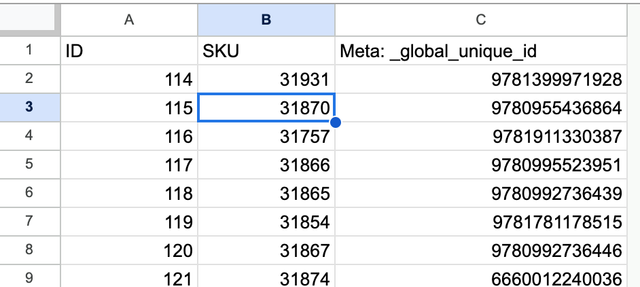
The UPC is metadata that WooCommerce does not include in imports or exports. Simply create a sheet with Meta: _global_unique_id as a column and import using Woo’s default import tool. If you already have a list of products/SKUs, you can use VLOOKUP in sheets/Excel to match the UPCs.
How about Google for WooCommerce?
To ensure you can map your GTIN/ISBN to Google for WooCommerce, add the following snippet to your theme’s functions.php file:
add_filter('woocommerce_gla_attribute_mapping_sources_custom_attributes',
	function( $values ) {
		return array_merge( $values, ['_global_unique_id']);
	}
);
If you need a hand, feel free to reach out!